-1.png?width=114&height=50&name=sparklearn_logo_2020_large_white-01%20(1)-1.png)
SparkLearn is a mobile-first platform, so the first step is to download our application for the best learner experience. You can also use SparkLearn via a web browser.
Minimum System Requirements:
Apple iOS 13
Android 9


Enterprise users may access SparkLearn through their own white-labeled application. Contact your SparkLearn administrator for assistance.
- Search for SparkLearn in the App Store or Google Play Store or use the links provided above
- Download the SparkLearn app to your device
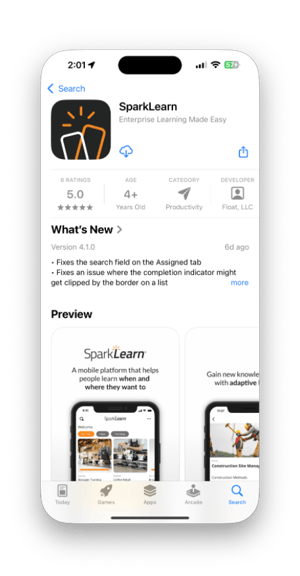
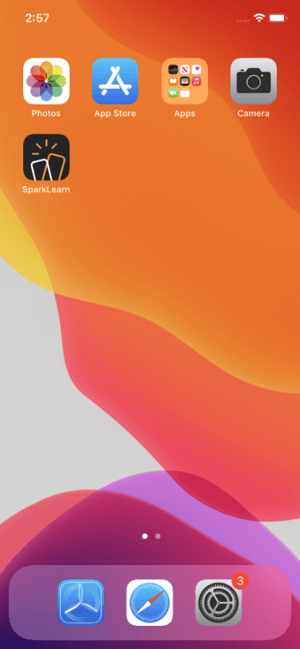
- Once downloaded, tap on the SparkLearn app icon
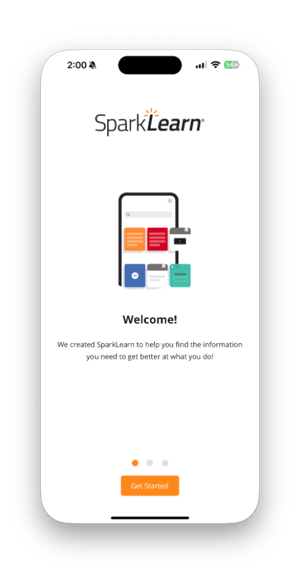
- View the welcome screen, then select Continue
- Enter your organization's Team Name. This is the same name that appears in the URL of your site.
In the example below, the Team Name is "businessinc" - This is the URL you would use to access the web. https://businessinc.sl.gowithsparklearn.com/
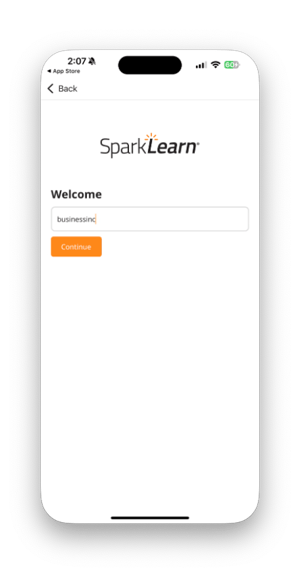
- Choose Continue
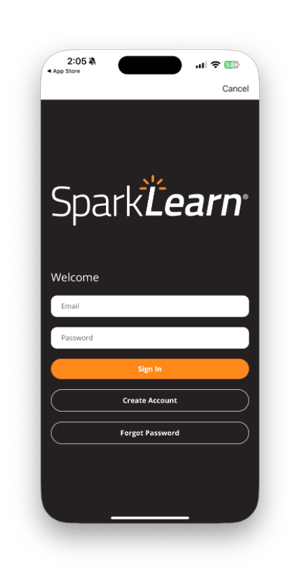
- Enter your Email and Password
- If needed, select Forgot Password for help resetting your password
- Some users will see the option to create an account, depending on your team settings. Please get in touch with your administrators for questions
- Select Sign In
|
|
Still can’t find what you're looking for? Contact Support