![sparklearn_logo_2020_large_white-01 (1).png]](https://help.sparklearn.com/hs-fs/hubfs/sparklearn_logo_2020_large_white-01%20(1).png?height=50&name=sparklearn_logo_2020_large_white-01%20(1).png)
OpenAI is an artificial intelligence research company and the brains behind ChatGPT. OpenAI can be used in a variety of ways but within SparkLearn it is a powerful content creation assistant. Essentially, when you create or edit an article, OpenAI can "read" its contents and then generate supporting content; saving you time and streamlining the authoring process.
You can use OpenAI to generate the following based on your article:
- Descriptions – A concise summary in 50 words or less
- Tags – 4 keywords at a time
- Related Flashcards – A concept/question with a corresponding explanation on the back
- Related Tips – A summary of your article
- Related Quizzes – A multiple choice question with answers and rationale
You can generate content multiple times to see different variations and make edits to add your personal voice or make corrections.
Note: When you request content to be generated, the entire body of the article will be sent to OpenAI so it can be processed by the language model. You can review OpenAI’s terms and policies at https://openai.com/policies.
- Select Create New Article or search for an existing article to edit
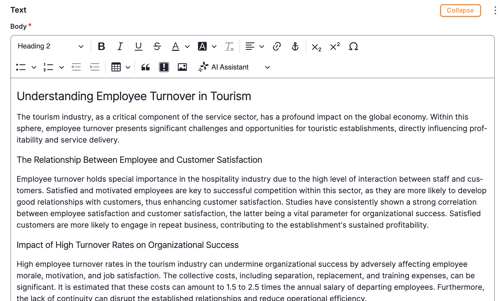
- Write or review the Body of your article – this section is what OpenAI will use to generate supporting content for you
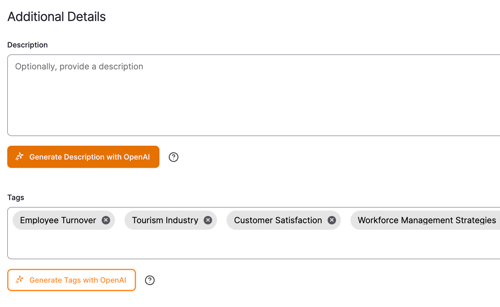
- In the Description field, write your own or select Generate Description with OpenAI to have OpenAI summarize the content for you
- In the Tags field, enter your own or select Generate Tags with OpenAI to have OpenAI recommend some for you
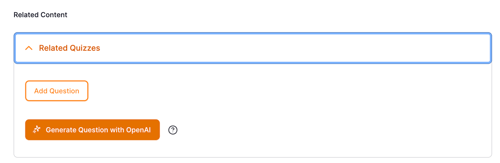
- Under Related Quizzes
- Select Add Question to choose from existing quiz questions in the system or create a new one
- Select Generate Question with OpenAI to have OpenAI create a new quiz question based on the article's content
- Under Related Flashcards
- Select Add Flashcard to choose from existing Flashcards in the system or create a new one
- Select Generate Flashcard to have OpenAI create a new Flashcard based on the article's content
- Under Related Tip Cards
- Select Add Tip to choose from existing Tips in the system or create a new one
- Select Generate Tip Card to have OpenAI create a new Tip based on the article's content
- Important: Once created, use the “Add Element” drop-down to add the Related content (Quiz, Flashcard, Tip) directly to the article.
- Complete the rest of the Create New Article process as usual
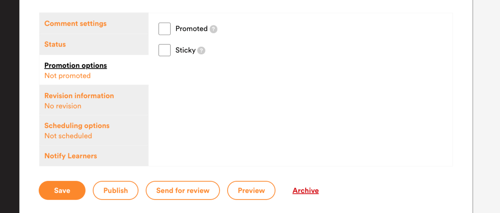
- Choose to Save as a draft, Publish, send your article for Review, or Preview
Still can't find what you're looking for? Contact Support