![sparklearn_logo_2020_large_white-01 (1).png]](https://help.sparklearn.com/hs-fs/hubfs/sparklearn_logo_2020_large_white-01%20(1).png?height=50&name=sparklearn_logo_2020_large_white-01%20(1).png)
A Manual Notification is a clickable pop-up message that appears on a user's mobile device alerting or reminding them about SparkLearn. Tapping the notification will bring the user to the SparkLearn home screen or directly to a piece of content if one was related.
If a user is set to get multiple push notifications at about the same time or previous notifications couldn't be delivered because their device was off or unreachable, only the latest push notification will be delivered.
- Select Communication from the menu on the left of the screen
- Under Communication select Push Notifications
- Choose to send notification by User or by Group by selecting the appropriate button
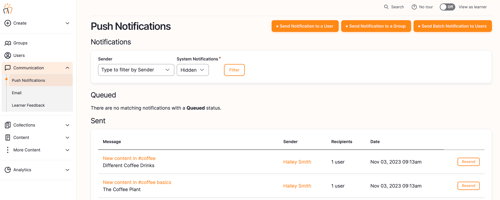
- Search for a specific user or group by typing their name and selecting Apply
- Check the box(es) beside the users or groups you want to notify
- Select the Send Push Notification button
- Add a Title for the Push Notification
- Write the Message of the Push Notification
- Use the dropdown menu to choose the Priority
- Set the Timing to Send Now or Schedule for later
- Select the Send Push Notification button
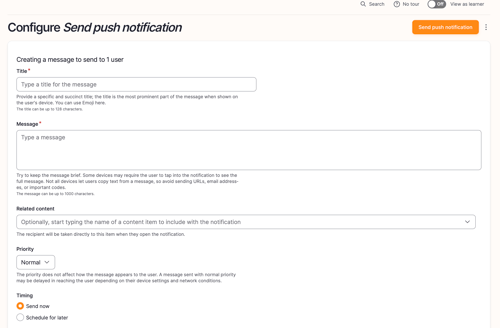
- Preview how the push notification will appear on the recipient's phone and of the related content
Still can’t find what you're looking for? Contact Support