![sparklearn_logo_2020_large_white-01 (1).png]](https://help.sparklearn.com/hs-fs/hubfs/sparklearn_logo_2020_large_white-01%20(1).png?height=50&name=sparklearn_logo_2020_large_white-01%20(1).png)
Each piece of content added to a Group is placed into a Section. Sections allow you to customize how content within a group is segmented and in what order they appear. This makes it easier to build specific learning paths based on your learners' needs.
Create a New Section
When you add a piece of content to a Group, you can enter the name of an existing section to add it to or automatically create a new section by entering a name that hasn't been used yet. Learn more about how to Add Content to Groups.
By default, sections will be displayed in alphabetical order. However, if a Group's sections have been reordered manually, any new sections will be added to the bottom of the page. New content added to a specific section will behave the same way.
Manage Sections in a Group
- Select Groups from the menu on the left of the screen
- Choose the Group you want to manage
- Select the Content tab at the top of the page then choose Sections
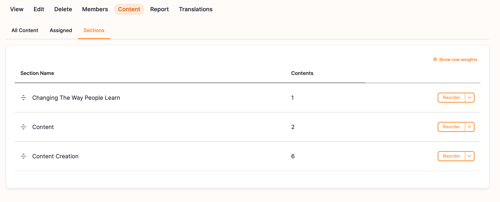
- View the sections by Name and the number of Contents it has
- The order of the sections, from top to bottom, determines the order in which they are displayed to learners
Reorder Sections in a Group
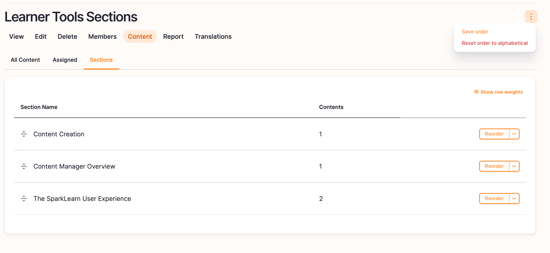
- Drag the move icon
 up or down to manually reorder the sections
 - Select Save Order to apply your changes
- Select Reset Order to Alphabetical to put the sections in alphabetical order and make that the default when new sections are added to that Group
Reorder Content in a Section
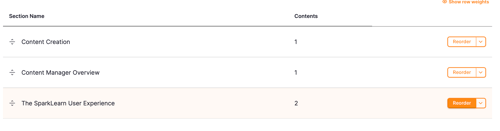
- Select Reorder from the dropdown menu for the section you want to edit
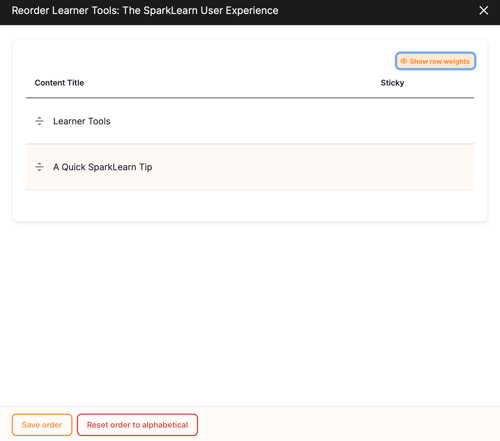
- Drag the move icon
 up or down to manually reorder the content
- Sticky content will appear at the top of the section
- Select Save Order to apply your changes
- Select Reset Order to Alphabetical to put the content in alphabetical order and make that the default when new content is added to that Group
Rename a Section
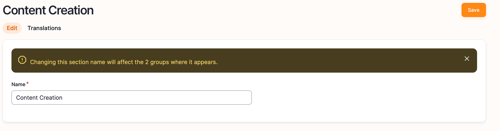
- Select Edit from the dropdown menu for the section you want to edit
- Enter the new name in the field
- Multiple sections in the same Group cannot have the same name
- Select Save to apply your changes
Delete a Section
Sections will automatically be deleted if all of their content has been moved to another section, removed from the Group, or deleted.
Still can’t find what you're looking for? Contact Support