![sparklearn_logo_2020_large_white-01 (1).png]](https://help.sparklearn.com/hs-fs/hubfs/sparklearn_logo_2020_large_white-01%20(1).png?height=50&name=sparklearn_logo_2020_large_white-01%20(1).png)
Manage Group Members
- Select Groups from the menu on the left of the screen
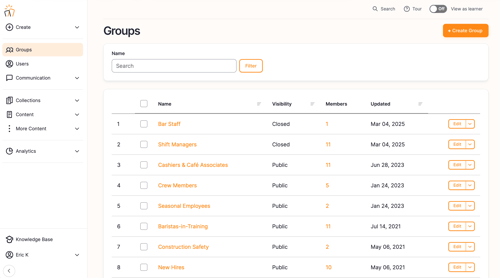
- Select the Name of the group member you want to edit
- From the Edit Group screen, select the Members tab
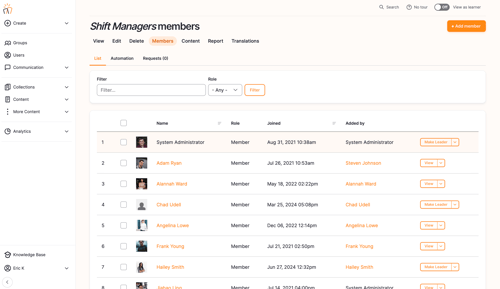
- Make changes to multiple members by checking the boxes beside their names, choosing an Action from the drop down menu and selecting Apply to selected items

Add Member to Group
- Select the +Add member button
- Start typing the name of a user in the Filter and select Apply to find a specific person
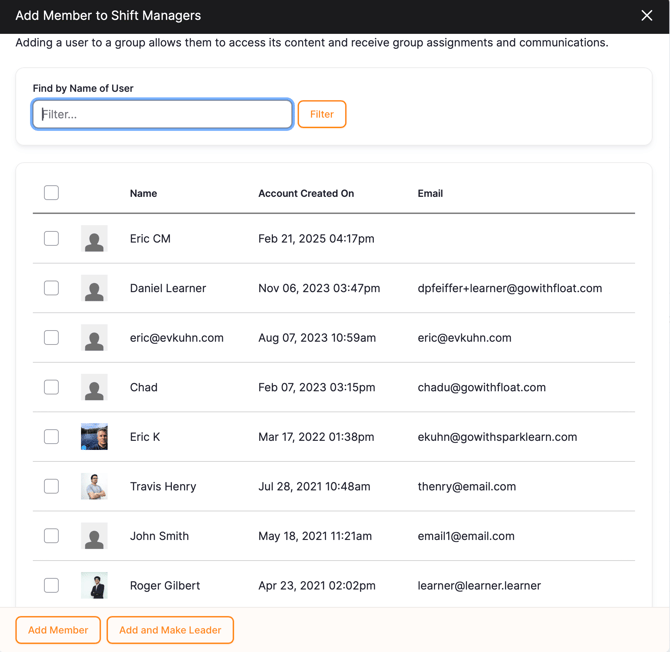
- Add multiple members to the group by checking the boxes beside their names and selecting Add to group
Managed Groups
Single Sign-On (SSO) can automatically create and place users into Managed Groups. Owners and Content Managers cannot manually add or remove users from these groups – the members are entirely managed by SSO. Contact your account manager for more information.
Still can’t find what you're looking for? Contact Support