![sparklearn_logo_2020_large_white-01 (1).png]](https://help.sparklearn.com/hs-fs/hubfs/sparklearn_logo_2020_large_white-01%20(1).png?height=50&name=sparklearn_logo_2020_large_white-01%20(1).png)
Link management is the important process of monitoring and maintaining links within a site. It is always a good idea to test a link yourself before including it in your content, but it can be difficult to keep track of them over time. SparkLearn's Link Management tool works in the background to Validate the links used in your content and generate a Report displaying:
- The link's URL
- The date the link was Last Checked
- The link's Status
- Working
- Redirected
- Broken
- If the link is broken, the Reason
- Blocked – the link may work, but needs to be validated manually because the site requires additional steps to view, like authentication or password-protection
- Not Found or Request Error – the URL provided has a typo or no longer exists
- Server Error or Unreachable – the site is not responding or timed out
-
- The piece of Content the link is in
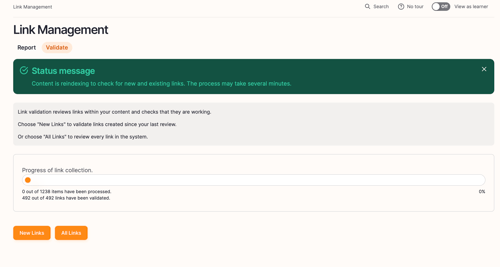
Newly created links are validated shortly after they are found and revalidated every four weeks. However, you can click the New Links button, to validate new links immediately.
This process can take a while. You can leave the page while the Link Management Tool works in the background.
- Select System from the menu on the left of the screen
- Select Link Management
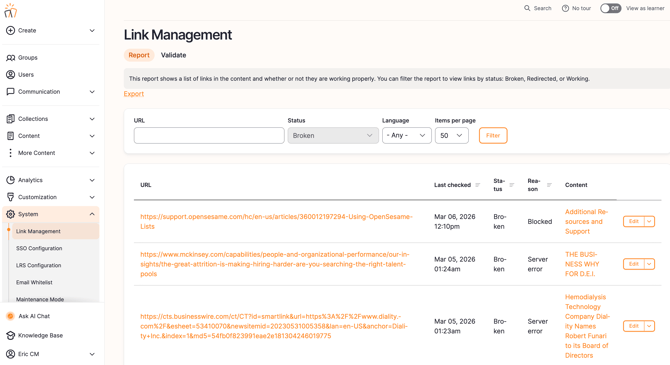
- View a Report of the links in the system, when they were last checked, their status, and what content they are in
- Search for a specific URL or use filters to view links by Status or Language
- Select the Export button to download .CSV version of the report to your device
- To fix a 'Broken' link or update a 'Working' one:
- Select Edit from the link's dropdown menu
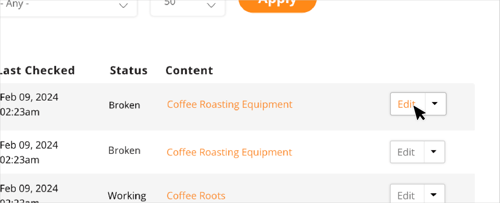
- Locate the link within the content editing screen
- Edit or replace the URL and select Save or Publish to apply your changes
- Select Edit from the link's dropdown menu
- To initiate the link-checking process at any time, navigate to the Validate tab
- Choose New Links to validate links created since your last review
- Choose All Links to find links that may have been missed during the last link check
- To exclude a link from being checked and included in reports:
- Select Settings from the link's dropdown menu
- Uncheck the box Check Link Status
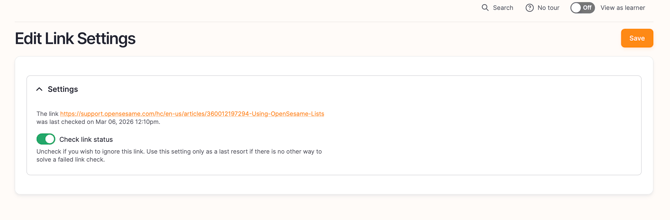
- Select Settings from the link's dropdown menu
This setting is for hiding broken links that the Link Management tool can't check but that you have validated manually. To recover an excluded link, you will need to submit a Support Request.
Still can’t find what you're looking for? Contact Support