![sparklearn_logo_2020_large_white-01 (1).png]](https://help.sparklearn.com/hs-fs/hubfs/sparklearn_logo_2020_large_white-01%20(1).png?height=50&name=sparklearn_logo_2020_large_white-01%20(1).png)
A Quiz is a multiple-choice question used to assess a learner's knowledge quickly. Multiple quiz questions can be combined to create a test.
Quizzes can stand alone or be related to a learning object in the authoring environment. If a quiz is related to a learning object that has been added to a Course, it will only be visible within that Course and will not be recommended on its own.
There are two answer types available for quizzes
- Single Answer – Only one option is the correct answer and questions are submitted as soon as the learner makes a selection.
- All that Apply – One or more options need to be selected to answer the question correctly and a Submit button is presented to select when they are ready.
You can also use OpenAI to generate a quiz based on existing content. Click here to learn more.
- Select Content from the menu on the left of the screen
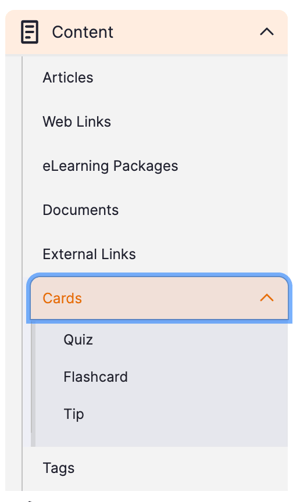
- Under Content, select Cards then Quiz
- Select the Create Quiz button to get started
- Use the dropdown menu to choose the Language
-
Choose the Answer Type for the quiz
- Single Answer – Only one option is the correct answer, and the learners' response is graded as soon as they select an answer
- All That Apply – One or more options need to be selected to answer the question correctly and a Submit button is presented to select when they are ready.
- Enter the quiz Question
- Fill out the first Quiz Option with a possible answer to your question
- Add optional feedback for the learner to receive after choosing this answer
- Check the box to mark this option as Correct
- Select Add Quiz Option and repeat Step 6 for the desired number of options
- Make sure your quiz has at least two options
- For Single Answer, make sure only one option is marked as Correct
- For All That Apply, make sure at least one option is marked as Correct.
- Add relevant Tags to help users find your quiz
- Select the Topic you want the quiz to fall under
- Choose Groups from the dropdown menu and select the Add to Group button
- If one or more groups are selected, only learners who belong to those groups will have access to the quiz
- If no groups are selected, all learners will have access to the quiz
- Under any added group(s), choose a Section from the dropdown menu or create a new one by entering a name that doesn't already exist in that group
- Choose the Difficulty level of your quiz
- Owners only: Select Promotion Options to increase the visibility of content to your learners
-
- Promoted - content appears in all users’ For You tab until they have completed it or the promotion is removed
- Sticky - content appears in the Trending tab on the learners' dashboard and at the top of group sections and tags
-
- Check Published to publish the quiz
- Once you're finished, choose to Save or Preview the quiz
Still can’t find what you're looking for? Contact Support