![sparklearn_logo_2020_large_white-01 (1).png]](https://help.sparklearn.com/hs-fs/hubfs/sparklearn_logo_2020_large_white-01%20(1).png?height=50&name=sparklearn_logo_2020_large_white-01%20(1).png)
Podcasts are audio content that learners can listen to directly in SparkLearn. Learners can subscribe to podcasts they enjoy and to make sure new episodes appear on their dashboard. Podcast episodes are displayed in order of release date from newest to oldest.
Podcasts are avalable with Premium and above subscriptions.
- Select More Content from the menu on the left of the screen
- Select Podcasts
- Select the Create New Podcast button to get started
- Select the Topic you want the Podcast to fall under
- Add a Title
- Add relevant Tags to help users find your Podcast
- Choose a Featured Image to represent the Podcast
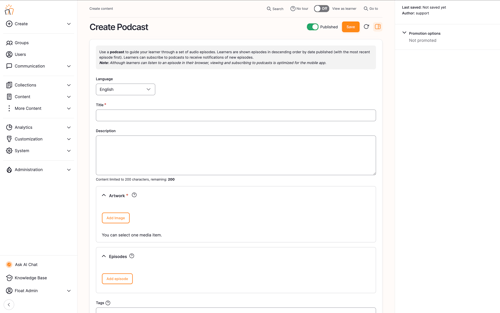
- Add a Description for your Podcast
- Select Add Episode to create a new episode (each Podcast can have multiple episodes to create a series).
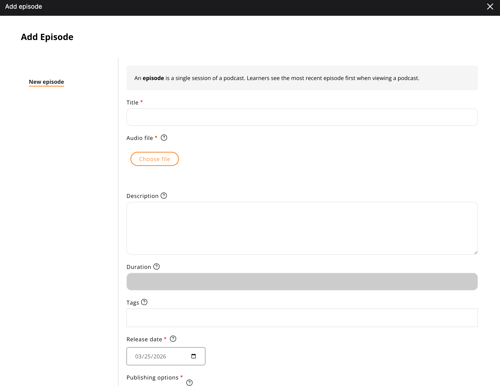
- Add an episode Title and relevant Tags
- Upload the mp3 Audio file
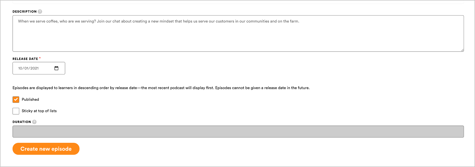
- Add a Description for your episode
- Choose a Release Date
- Check Published to publish the episode
- Select Create New Episode
- Select Groups to share the content with
- If one or more groups is selected, only learners who belong to those groups will have access to the content
- If no groups are selected, all learners will have access to the content
- Owners only: Select Promotion Options and check Promoted and/or Sticky to increase the visibility of content to your learners
- Promoted – content appears in all users’ For You tab until they have completed it or the promotion is removed
- Check Published to publish the Podcast
- Once you're finished, choose to Save or Preview the Podcast
Still can’t find what you're looking for? Contact Support