![sparklearn_logo_2020_large_white-01 (1).png]](https://help.sparklearn.com/hs-fs/hubfs/sparklearn_logo_2020_large_white-01%20(1).png?height=50&name=sparklearn_logo_2020_large_white-01%20(1).png)
What are Email Notifications?
Email Notifications are a way to send notifications to your users via their email address. This is a great tool to reach users who may not use the mobile app or receive in-app notifications.
Email notifications can be viewed in the web interface and can link directly to SparkLearn content.
Visual Guide
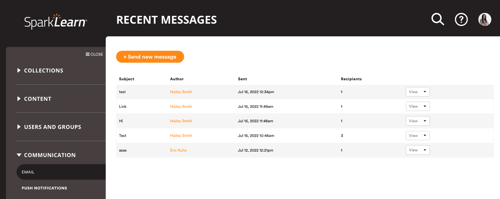
- Select Communication from the menu on the left of the screen

- Under Communication, select Email
- Select the + Send new message button
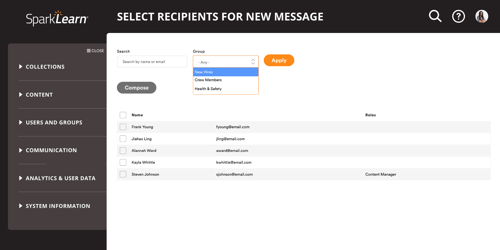
- Search for users by name or email or, filter them by Group
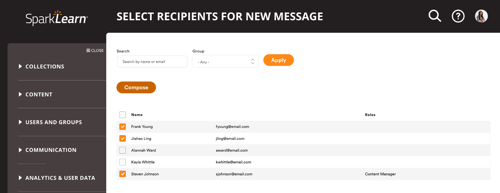
- Check the boxes next to the users you want to email and select Compose
- Add a subject line and text to the body of the email
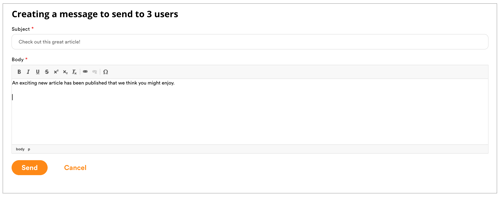
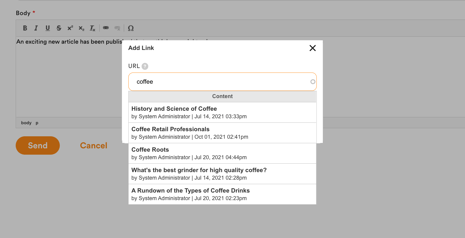
- Optionally, add a direct link to existing content by selecting the link icon
- Start entering a title in the URL to choose from your published content
- Select the desired content and Save
- Review your email and select Send

Still can't find what you're looking for? Contact Support