![sparklearn_logo_2020_large_white-01 (1).png]](https://help.sparklearn.com/hs-fs/hubfs/sparklearn_logo_2020_large_white-01%20(1).png?height=50&name=sparklearn_logo_2020_large_white-01%20(1).png)
Sometimes, article text is long, and you need a way to jump to a particular section. Using Anchor links allows you to do this within a text area.
To begin, first establish an Anchor.
- In the text area, select the text that you would like to be able to jump to
- Then choose the Anchor icon in the text toolbar
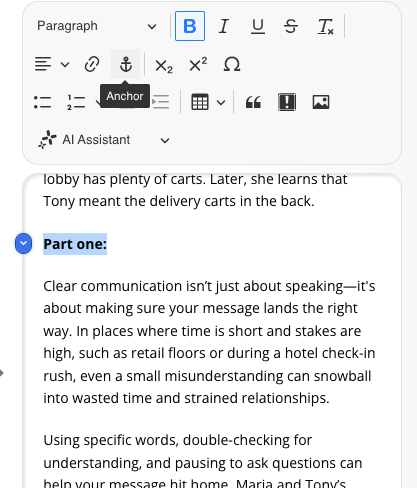
- Give the Anchor a name (no spaces are allowed) and then select Insert
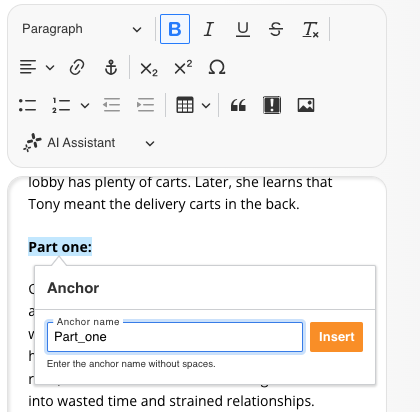
Now that the Anchor has been created, you can use the Link tool to add a link. Follow the steps below.
- Choose the text that you would like to be the link, and then select the Link tool
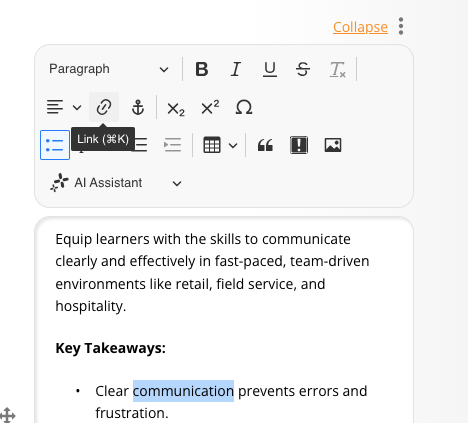
- In the link options, you will now see the Anchors option
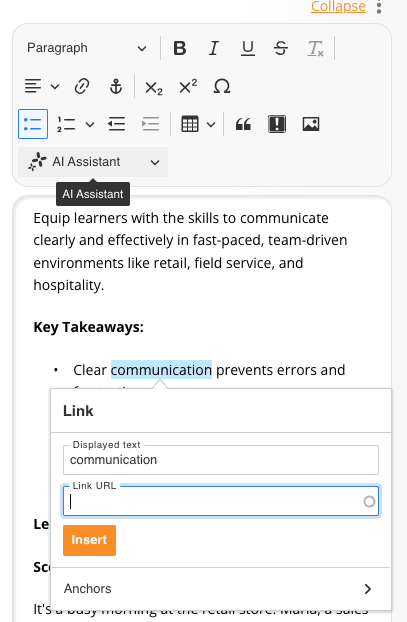
- Select Anchors to see the list of all anchors on the page that you have established
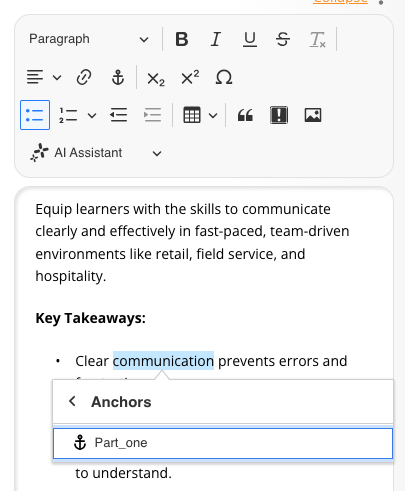
- Choose the correct Anchor and then choose Insert
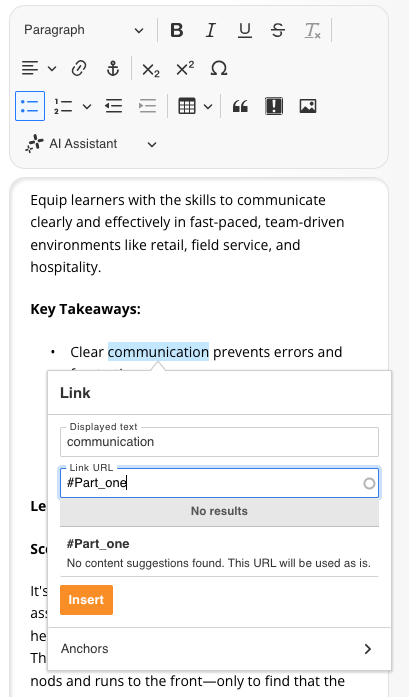
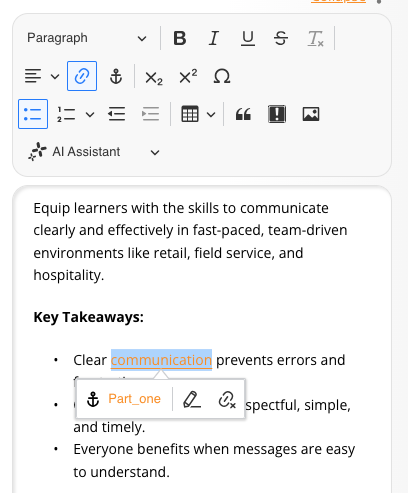
- The text is now linked to the Anchor that you have established, and learners can use that link to jump directly to that point of text
- If you need to edit the Anchor, you can select it to change or delete it