![sparklearn_logo_2020_large_white-01 (1).png]](https://help.sparklearn.com/hs-fs/hubfs/sparklearn_logo_2020_large_white-01%20(1).png?height=50&name=sparklearn_logo_2020_large_white-01%20(1).png)
What are Labels?
Labels are the words used for different features and sections of SparkLearn. Owners can replace the default labels in the system with their own, allowing them to further customize the platform to their brand.
Ex. "Groups" can be changed to "Teams"
Visual Guide
- Select System Information from the menu on the left of the screen
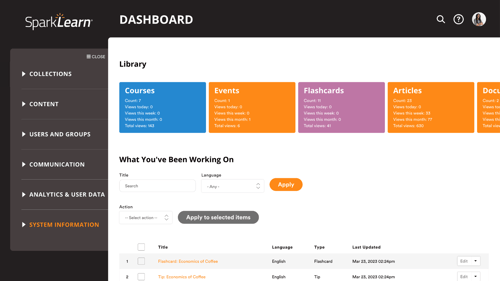
- Under System Information, select Customize Labels
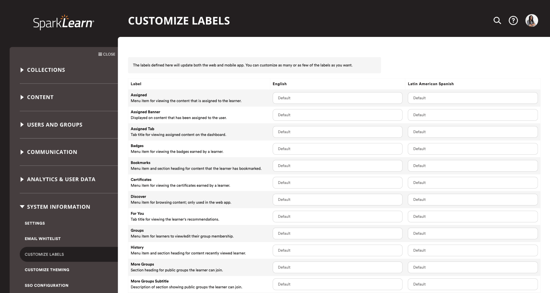
- Enter a custom label in the text field next to the label you want to replace
- If your system uses multiple language, you can add a custom label in each language
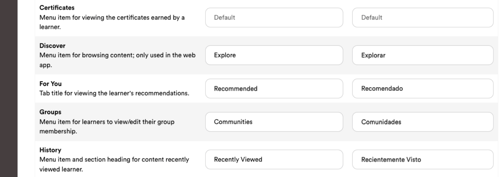
- If your system uses multiple language, you can add a custom label in each language
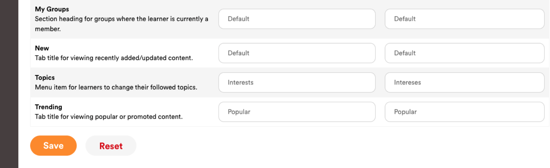
- Select Save to apply these changes to the system
- Select Reset to change all labels back to their default value
Still can't find what you're looking for? Contact Support